GUI Guide
In addition to the programmatic API, ctrl-freeq provides a graphical user interface, implemented using the Tkinter framework, which allows the configuration and execution of quantum control optimizations without the need for writing Python code. The interface exposes the full set of configurable parameters and provides real-time feedback during the optimization process.
Launching the GUI
The GUI may be launched from the command line after installation:
Alternatively, it may be invoked as a Python module:
First Launch
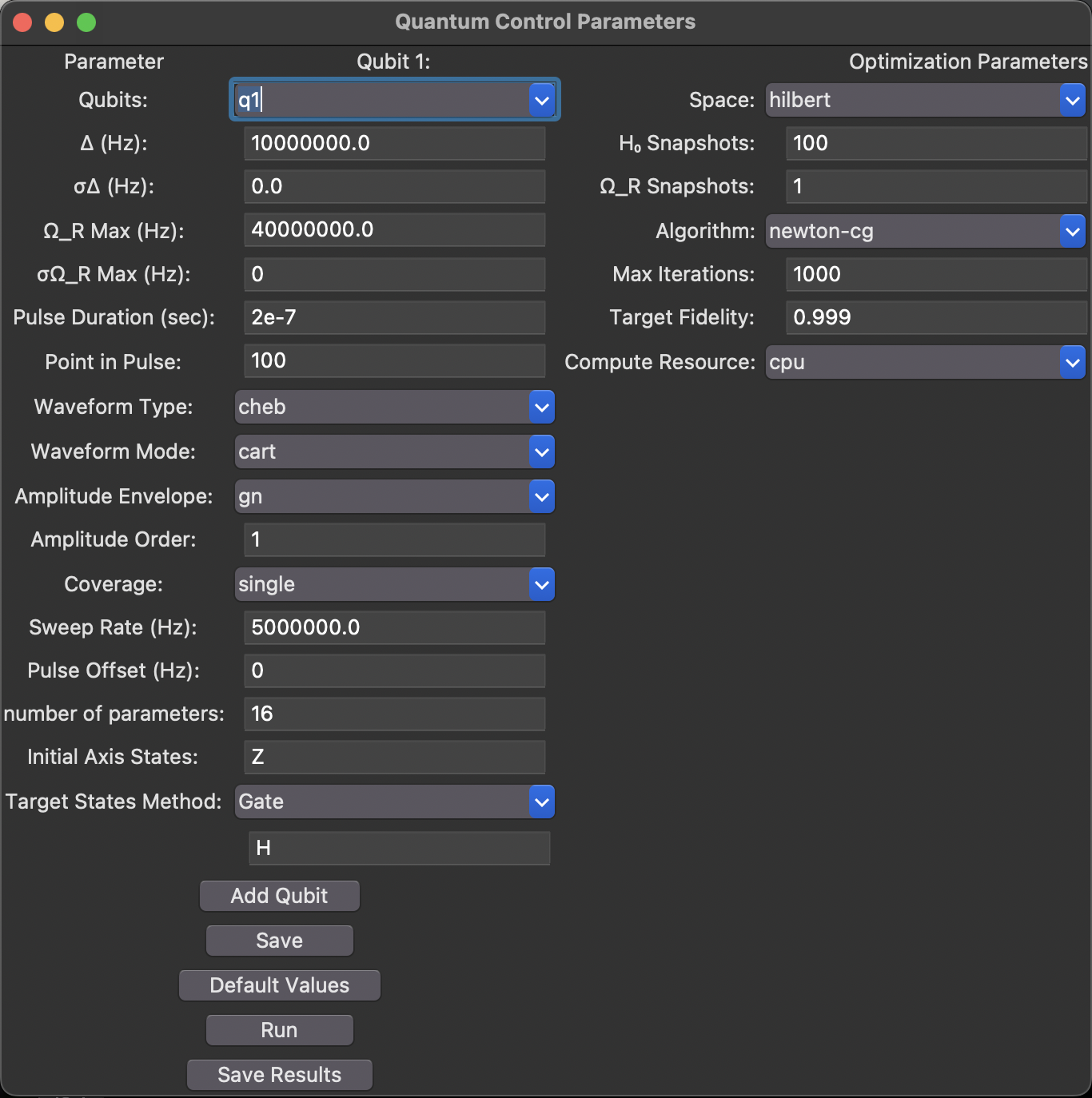
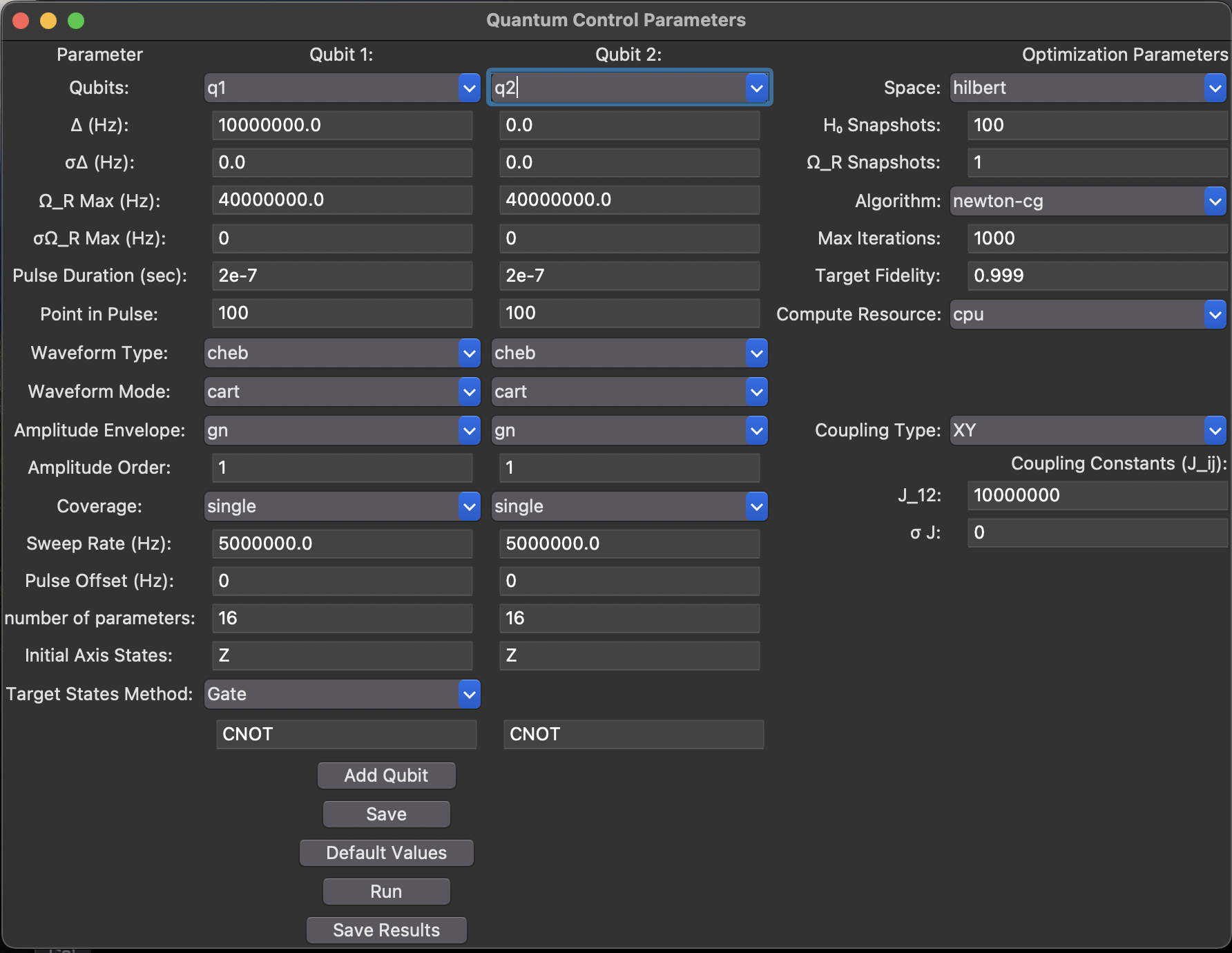
Upon first launch, the GUI opens with a single qubit configured. Additional qubits may be added using the Add Qubit button for multi-qubit optimizations.
GUI Layout
The interface is organized into six principal sections:
| Section | Purpose |
|---|---|
| Qubit Configuration | Per-qubit pulse and system parameters |
| Target Specification | Definition of the target quantum state or gate |
| Optimization Settings | Hamiltonian type, algorithm, iterations, and compute options |
| Coupling Controls | Inter-qubit coupling (multi-qubit only, type-dependent) |
| Action Buttons | Run, Save, and Reset controls |
Single-Qubit Configuration
Two-Qubit Configuration
Coupling Controls
The Coupling Type and Coupling Constants section appears on the right-hand side of the interface only when two or more qubits are configured.
Configuring Parameters
Each qubit is assigned its own configuration panel. The parameters within each panel are organized into three categories:
- System Parameters — Detuning/frequency, Rabi/drive amplitude, and their associated uncertainties
- Pulse Parameters — Duration, discretization, sweep rate, and bandwidth
- Waveform Settings — Basis type, mode, envelope, and expansion order
The system parameter labels change depending on the selected Hamiltonian Type:
| Parameter | Spin Chain Label | Superconducting Label |
|---|---|---|
| Frequency | Δ (Hz) — Detuning | ω (Hz) — Qubit frequency |
| Frequency uncertainty | σΔ (Hz) | σω (Hz) |
| Drive amplitude | Ω_R Max (Hz) — Rabi frequency | Ω_d Max (Hz) — Drive amplitude |
| Drive uncertainty | σΩ_R Max (Hz) | σΩ_d Max (Hz) |
A detailed description of all parameters, including their defaults and units, is provided in Optimization → Parameters.
Target Specification
The Target States Method dropdown determines the method by which the desired final state is specified:
| Method | Description |
|---|---|
| Axis | Bloch sphere direction (Z, -Z, X, -X, Y, -Y) |
| Gate | Quantum gate (selected from a dropdown; see below) |
| Phi/Beta | Rotation angles (axis φ and angle β) |
When the Gate method is selected, the gate entry field is a dropdown menu with available gates filtered by the number of qubits and the selected Hamiltonian type:
| Qubits | Spin Chain | Superconducting |
|---|---|---|
| 1 | X, Y, Z, H, S, T | X, Y, Z, H, S, T |
| 2 | CNOT, CZ, SWAP, iSWAP, √iSWAP, ECR | iSWAP, √iSWAP, ECR, CZ, CNOT, SWAP |
| 3+ | Toff | Toff |
The default gate is platform-aware: CNOT for spin chains and iSWAP for superconducting qubits.
Example — π-pulse (inversion):
- Initial State:
Z - Target Method:
Axis - Target Axis:
-Z
A complete description of all target specification options is provided in Optimization → Parameters → Target States.
Multi-State Optimization
For the design of universal rotations or conditional gates, multiple initial/target state pairs may be specified. Comma-separated values are entered in the respective fields (e.g., Initial: X, Y, Z, Target: X, Z, -Y). A detailed treatment of this capability is provided in Multi-State Optimization.
Optimization Settings
| Setting | Description |
|---|---|
| Hamiltonian Type | spin_chain or superconducting — selects the physical platform (see below) |
| Space | hilbert (pure states) or liouville (density matrices) |
| Dissipation | non-dissipative (default) or dissipative (Lindblad master equation) |
| Algorithm | Optimization algorithm |
| Max Iterations | Maximum optimization iterations |
| Target Fidelity | Stop when fidelity reaches this value |
| Compute Resource | cpu or gpu |
Hamiltonian Type
The Hamiltonian Type dropdown selects the physical platform for the optimization. Changing this setting dynamically updates the interface:
| Platform | Field Labels | Default 2-Qubit Gate | Coupling Types |
|---|---|---|---|
| Spin Chain | Δ (detuning), σΔ, Ω_R, σΩ_R | CNOT | Z, XY, XYZ |
| Superconducting | ω (qubit frequency), σω, Ω_d, σΩ_d | iSWAP | XY, ZZ, XY+ZZ |
When the Hamiltonian type is changed:
- System parameter labels are relabelled to match the physical conventions of the selected platform
- The coupling controls section is rebuilt with the appropriate coupling types and parameters
- Gate dropdown values are updated with platform-appropriate defaults
Backward Compatibility
Configurations saved without a hamiltonian_type field default to the spin-chain model, preserving backward compatibility with existing JSON files.
For guidance on algorithm selection, the reader is referred to Optimization → Algorithms.
For GPU setup instructions, see Optimization → Compute.
Dissipation Controls
When the Dissipation dropdown is set to dissipative, the interface enables the modelling of open quantum systems via the Lindblad master equation. The following behaviour is activated:
- The Space setting is automatically forced to
liouville(density matrix mode) - Per-qubit T1 and T2 entry fields are revealed in the qubit configuration panel
- The optimizer employs Strang operator splitting: a half dissipative channel, the unitary step, then a second half channel. The dissipative channel is the exact matrix exponential \(\exp(\mathrm{d}t\,\mathcal{D})\) of the Lindblad dissipator, so every intermediate state remains a physical density matrix regardless of step size, and the splitting is second-order accurate in \(\mathrm{d}t\)
| Control | Description | Units |
|---|---|---|
| T1 | Amplitude damping time constant (energy relaxation) | seconds |
| T2 | Pure dephasing time constant (phase decoherence) | seconds |
Physical Constraint
The values entered must satisfy the physical constraint \(T_2 \leq 2\,T_1\) for each qubit. Configurations that violate this bound will produce a validation error.
Liouville Space
Selecting dissipative mode automatically sets the optimization space to liouville. This is required because dissipative dynamics operate on density matrices rather than pure state vectors. The space selection cannot be changed back to hilbert while dissipative mode is active.
Coupling Controls (Multi-Qubit)
When two or more qubits are configured, a coupling section becomes available. The controls displayed depend on the selected Hamiltonian type.
Spin Chain Coupling
| Control | Description |
|---|---|
| J_ij | J-coupling strength between qubit pairs (Hz) |
| Coupling Type | Z (Ising), XY (exchange), or XYZ (Heisenberg) |
| σ J | Coupling uncertainty |
Superconducting Coupling
| Control | Description |
|---|---|
| g_ij | Capacitive coupling strength between qubit pairs (Hz) |
| Coupling Type | XY (exchange), ZZ (static ZZ), or XY+ZZ (both) |
| σ g | Coupling uncertainty |
| Anharmonicity | Per-qubit anharmonicity α_i (Hz), used to compute the static ZZ shift when the coupling type includes ZZ |
Static ZZ Coupling
When the superconducting coupling type includes ZZ, the ZZ interaction strength is approximated from the anharmonicities as ζ_ij ≈ 2 g_ij² (1/α_i + 1/α_j). This models the always-on parasitic ZZ coupling that arises in fixed-frequency transmon architectures.
For a detailed description of the coupling parameters, see Optimization → Parameters → Multi-Qubit Coupling.
Action Buttons
Run
Initiates the optimization with the current settings. Progress information is displayed in the console, and the resulting plots are presented upon completion.
Save
Saves the current configuration to a JSON file. The exported file may subsequently be loaded in the GUI, used with the Python API, or shared with collaborators.
Save Results
Upon completion of an optimization run, this button performs the following actions:
- All generated plots are saved to
results/plots/, including, for single-qubit runs with thevideoextra, the Bloch-sphere videobloch_sphere_<timestamp>_rho<i>.mp4 - A dashboard HTML file, with the video embedded, is created in
results/dashboards/
A detailed description of the dashboard is provided in Dashboard.
Set Defaults
Resets all parameters to their default values.
Workflow Examples
Example 1: Single-Qubit π-Pulse
- Launch the GUI:
freeq-gui - Set Initial State:
Z - Set Target States Method:
Axis - Set Target Axis:
-Z - Set Algorithm:
bfgs - Click Run
Example 2: Two-Qubit CNOT Gate (Spin Chain)
- Launch the GUI:
freeq-gui - Ensure Hamiltonian Type is set to
spin_chain - Click Add Qubit to add a second qubit
- Set Target States Method:
Gate - Select Gate:
CNOTfrom the dropdown - Configure J-coupling in the Coupling section
- Click Run
Example 3: Two-Qubit iSWAP Gate (Superconducting)
- Launch the GUI:
freeq-gui - Set Hamiltonian Type to
superconducting - Click Add Qubit to add a second qubit
- Set Target States Method:
Gate - Select Gate:
iSWAPfrom the dropdown (default for superconducting) - Configure coupling strength (g_ij) and coupling type (
XY) in the Coupling section - Click Run
Example 5: Robust Pulse Design
- Configure the basic pulse parameters
- Set σΔ (Hz):
100000(100 kHz uncertainty) - Set σΩ_R Max (Hz):
50000(50 kHz uncertainty) - Set Target Fidelity:
0.9999 - Click Run
The optimizer will seek pulses that are robust to the specified parameter uncertainties.
Example 6: Dissipative π-Pulse (Open Quantum System)
- Launch the GUI:
freeq-gui - Set Initial State:
Z - Set Target States Method:
Axis - Set Target Axis:
-Z - Set Dissipation:
dissipative - Enter T1:
0.001(1 ms) - Enter T2:
0.0005(500 μs) - Set Algorithm:
qiskit-cobyla - Click Run
The optimizer will design a pulse that achieves the desired inversion while accounting for amplitude damping and dephasing during the pulse.
Example 7: Universal Rotation Pulse
- Launch the GUI:
freeq-gui - Set Initial State:
X, Y, Z - Set Target States Method:
Axis - Set Target Axis:
X, Z, -Y - Set Algorithm:
qiskit-cobyla(recommended for multi-state optimization) - Click Run
This procedure designs a single pulse that performs a universal rotation, mapping all three Bloch sphere axes to their specified targets simultaneously. A detailed treatment of multi-state optimization is provided in Multi-State Optimization.
Tips
Recommended Initial Approach
It is generally advisable to begin with the default parameter values and a straightforward target configuration (such as a π-pulse) in order to verify that the setup is functioning correctly before proceeding to more complex optimization problems.
Iteration Count
For initial testing, a moderate number of iterations (100–500) is typically sufficient. For production-quality results, the iteration count should be increased to 1000 or more.
Memory Usage
Multi-qubit systems with a large number of time discretization points can require significant memory. System resources should be monitored when working with large problem sizes.
Troubleshooting
GUI does not launch
# Verify that Tkinter is available
python -c "import tkinter; print('Tkinter OK')"

# Attempt to run directly
python -m ctrl_freeq.cli
Optimization does not converge
- Increase the Max Iterations setting
- Consider using a different Algorithm (see Algorithms)
- Reduce the Target Fidelity initially to verify convergence behaviour
- Ensure that parameter values are physically reasonable
Plots do not appear
- Verify that the matplotlib backend is correctly configured
- Check the console for error messages
- As an alternative, save the results rather than viewing them interactively
Next Steps
- API Reference — Use ctrl-freeq programmatically
- Dashboard — Visualize and export results
- Optimization Parameters — Detailed parameter reference
- Algorithms — Algorithm details and selection guide